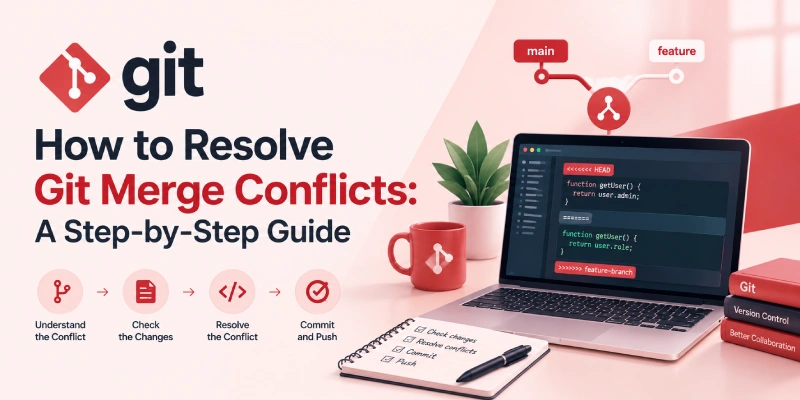
How to Resolve Git Merge Conflicts: A Step-by-Step Guide
Learn how to resolve Git merge conflicts step by step: read conflict markers, fix files, use VS Code, and build version control skills for real projects.
how-to-resolve-git-merge-conflicts
Few moments in a first team project feel as alarming as seeing CONFLICT (content): Merge conflict in the terminal. The message looks like a failure, yet it
is simply Git asking for a human decision. Knowing how to resolve git merge conflicts turns that pause into a
routine task of a few minutes instead of a blocker. This guide explains why conflicts occur, walks through a
repeatable six-step process on the command line, shows the shortcuts available in VS Code and GitHub, and outlines
habits that keep conflicts rare. Version control with Git and GitHub also ranks among the most important technical
skills for CS students, which makes it one of the most practical topics to learn early.
What Is a Git Merge Conflict?
Git combines work from two branches by comparing three snapshots: the common ancestor commit, the latest commit on the current branch, and the latest commit on the branch being merged. When the changes do not overlap, Git merges them automatically. When both branches modify the same lines of a file, or one branch edits a file that the other deleted, Git cannot determine which version is correct and pauses the merge.
The most common triggers are:
- Two developers editing the same line or function on different branches.
- A long-lived
feature branch that drifts far away from
main. - One branch deleting or renaming a file that another branch modified.
- Automatic reformatting that changes whitespace across an entire file.
How to Resolve Git Merge Conflicts: A Six-Step Process
The example below merges a branch named feature-login into main. The same sequence applies to any pair of branches.
Start from a clean working state
Run git status before merging. Commit or stash any unfinished work so that the
only changes in play are the ones being merged, then update the target branch.
git switch main
git pull
git merge feature-login
Read what Git reports
When a conflict occurs, Git prints the affected files and stops:
Auto-merging app.js
CONFLICT (content): Merge conflict in app.js
Automatic merge failed; fix conflicts and then commit the result.
Run git status again. Files listed under “Unmerged paths” need attention, while
files that merged cleanly are already staged.
Understand the conflict markers
Git inserts markers into each conflicted file to show both versions side by side:
<<<<<<< HEAD
const timeout = 30;
=======
const timeout = 60;
>>>>>>> feature-login
The block between <<<<<<< HEAD and ======= is the version on the current branch. The block between ======= and >>>>>>> feature-login
is the incoming version from the branch being merged.
Decide what the final code should be
There are four valid outcomes: keep the current version, keep the incoming version, combine both, or write
a new version that satisfies both changes. Edit the file to the intended result and delete all three marker
lines. When the purpose of the other change is unclear, check with its author, and use git log --merge to list the commits from both sides that touch the conflicted files.
Test, then stage the file
A resolved file that compiles is not necessarily a correct file. Run the application and the test suite first. This is where software testing and debugging habits pay off.
Then search the project for leftover conflict markers:
grep -rn "<<<<<<<" .
If the command prints nothing, no markers remain. Once the result behaves correctly, mark the conflict as resolved:
git add app.js
Complete the merge
With every conflicted file staged, create the merge commit. Git pre-fills a default message that can be kept as is.
git commit
git push
git merge --abort attempts to
restore the repository to its state before the merge began.Resolving Conflicts in VS Code and GitHub
VS Code lists conflicted files under a Merge Changes section of the Source Control view. Inline actions such as Accept Current Change, Accept Incoming Change and Accept Both Changes appear above each conflict block. For larger conflicts, the 3-way merge editor shows both sides and the result together, and Complete Merge stages the file when finished.
GitHub offers a browser-based conflict editor on pull requests. It handles competing line changes directly on the page, while other situations, such as a file deleted on one branch, are resolved on the command line.
Habits That Reduce Merge Conflicts
Commit small and often
Focused commits produce smaller, easier conflicts.
Sync with the main branch regularly
Merging or rebasing the latest main into a feature branch keeps drift under
control.
Keep branches short-lived
Short-lived branches stay close to the code everyone else is merging.
Divide work by file or module
Agree on who edits shared files before starting.
Share formatter settings
A common code formatter prevents whitespace-only conflicts.
Why Git Belongs Among Core Computer Science Skills
Coursework in programming languages and data structures and algorithms builds problem-solving ability, but professional software is written by teams. Every team shares a repository, and every shared repository eventually produces conflicts. Handling them calmly is one of the programming skills for students that stands out in internships, capstone projects and open-source contributions.
Git sits inside a wider set of IT skills for computer science students. The list below covers the skills every computer science student should learn alongside it, with the career paths each one supports.
| Core skill | What it covers & where it leads |
|---|---|
| Programming languages (Python, Java, JavaScript) | The base for every path, from application development to automation. |
| Data structures and algorithms | Efficient problem solving for backend engineering, technical interviews and performance-sensitive systems. |
| Database management and SQL | Data modelling and querying for backend, analytics and data engineering roles. |
| Web development | HTML, CSS, JavaScript and one framework, supporting full-stack and product engineering. |
| Software testing and debugging | Unit testing and systematic debugging for QA roles and dependable releases, including validating a conflict resolution before committing. |
| Cloud computing fundamentals | Virtual machines, storage, containers and CI/CD pipelines, which often run automatically when branches are merged. Relevant to cloud and DevOps careers. |
| Operating systems and computer networks | Processes, file systems, HTTP, DNS and TCP/IP for systems, infrastructure and reliability work. |
| Cybersecurity fundamentals | Secure coding, access control and secrets management, such as keeping credentials out of commits. |
| Artificial intelligence and machine learning basics | Data preparation and model workflows for AI engineering and data science, where versioned experiments matter. |
A Practice Routine for Merge Conflicts
- Create a practice repository on GitHub containing one text file.
- Create two branches, edit the same line differently on each, and merge them to trigger a conflict on purpose.
- Resolve it three ways: keep current, keep incoming, and combine both.
- Contribute to a project with a “good first issue” label and keep the pull request updated against the main branch.
Conclusion
Learning how to resolve Git merge conflicts comes down to a repeatable sequence: check the status, read the markers, decide on the correct code, test, stage and commit. Visual editors speed up the work, yet a clear understanding of markers and branches is what keeps the process reliable under pressure. Combined with solid programming fundamentals, testing habits and cloud awareness, confident version control forms a practical base for roles in development, DevOps and QA. Setting up a practice repository and creating a few conflicts on purpose is the fastest way to make the process routine.
Frequently Asked Questions
What causes a Git merge conflict?
A Git merge conflict occurs when two branches modify the same lines of a file, or when one branch deletes or renames a file that another branch modifies. Git cannot automatically determine the intended result, so it pauses the merge and requires you to resolve the conflicting changes.
How do I fix a Git merge conflict?
Run git status to identify conflicted files. Open each file, review the conflict
markers, and edit the code to produce the intended result. Remove the marker lines, test the changes, and
stage each resolved file using git add. Once all conflicts are resolved and
staged, complete the merge with git commit or git merge --continue.
How do I get out of a merge conflict?
If you want to cancel an in-progress merge, run git merge --abort. This attempts
to restore your repository to its state before the merge began. Check git status
afterward. Be aware that aborting may not fully restore pre-existing uncommitted changes in every situation.
What should I do after fixing a merge conflict?
Review the resolved code, run the application and relevant tests, and check for leftover conflict markers
using grep -rn "<<<<<<<" .. Stage all resolved files with
git add, then complete the merge with git commit or
git merge --continue. Push the changes to the remote repository once everything
has been verified.
How can I check for merge conflicts in Git?
Run git status after a merge stops because of conflicts. Git lists unresolved
files under an unmerged paths section. To check whether a merge would produce conflicts before completing it,
you can use git merge --no-commit --no-ff branch-name. If conflicts occur, resolve
them or cancel the merge with git merge --abort. Note that --no-commit alone does not prevent a fast-forward merge, which is why --no-ff is included.
How can I avoid merge conflicts in Git?
Commit small changes frequently, synchronize with the main branch regularly, and keep feature branches short-lived. Coordinate with teammates when editing shared files and use consistent code-formatting rules. These practices reduce the likelihood of conflicts, although they cannot eliminate them entirely.
How can I resolve merge conflicts locally in GitLab?
You can resolve GitLab merge request conflicts locally using Git. Fetch the latest changes, update your source branch with the target branch, resolve the conflicted files, test the changes, and push the updated source branch to GitLab. For supported conflicts, GitLab also provides a web editor that lets you resolve competing line changes directly in a merge request.
Ready to Streamline Your Development Workflow?
Clean branching, code review and testing keep merges smooth as teams grow. Explore our core engineering and QA services at Invicktus: